HAMi AI Platform Air-Gapped Deployment Guide
This document is intended for SRE / platform engineers. It describes how to deploy HAMi AI Platform in a Kubernetes cluster using the All-in-One air-gapped package, and complete license activation, GPU node enablement, and sample workload validation.
This delivery package uses Zarf to perform image import, Helm chart installation, and subsequent upgrades in environments without external network access or with restricted networks, reducing the manual effort of syncing images and maintaining installation order.
Zarf is an application packaging and deployment tool for Kubernetes air-gap / semi-air-gap environments; it can bundle images, Helm charts, scripts, and deployment actions into a portable package.
Installation itself does not require a license. Complete the software deployment first, then apply for and import the license.
Without activation, vGPU partitioning and scheduling are unavailable, and functional verification will fail.
Air-Gapped Package Contents
The outer delivery package naming convention is:
hami-ai-platform-v<VERSION>-airgap-<ARCH>.tar.gz
hami-ai-platform-v<VERSION>-airgap-<ARCH>.tar.gz.sha256
The current hami-ai-platform-v0.0.3-airgap-amd64.tar.gz contains the following key files:
| File | Purpose |
|---|---|
zarf-linux-amd64 | Linux amd64 Zarf CLI |
zarf-init-amd64-v0.82.0.tar.zst | Zarf init air-gapped package |
hami-ai-platform-v0.0.3-airgap-amd64.tar.zst | HAMi AI Platform main deployment package |
zarf-package-hami-example-gpu-burn-amd64-v0.0.2.tar.zst | GPU burn sample validation package |
zarf-package-hami-example-vllm-qwen-amd64-v0.0.4.tar.zst | vLLM + Qwen sample validation package |
kantaloupe/ | kantaloupe values examples and full values documentation |
hami/README.md | hami-enterprise full values documentation |
collect-hami-license-info.sh | License application information collection script |
collect-cluster-info.sh | Cluster diagnostic information collection script |
Use the following command to inspect the contents of the outer package and verify the deliverables are complete:
tar -tvf hami-ai-platform-v0.0.3-airgap-amd64.tar.gz
Prerequisite Checks
-
Kubernetes version 1.24 or later, with working
kubectland Helm on the administration host. -
NVIDIA nodes already have the NVIDIA driver and NVIDIA Container Toolkit, or NVIDIA GPU Operator will install them.
-
Ascend nodes already have the vendor driver and runtime configured and are visible to Kubernetes. This guide installs only the HAMi Ascend device plugin.
-
When NVIDIA GPU Operator is used, its default device plugin must be disabled to avoid a conflict with HAMi.
kubectl cluster-info
kubectl get nodes -o wide
helm version
Extract, Verify, and Install Zarf
# Download delivery package and checksum file
curl -L -O <URL>
curl -L -O <SHA256_URL>

# Verify integrity
shasum -a 256 -c hami-ai-platform-v0.0.3-airgap-amd64.tar.gz.sha256

# Extract outer tar.gz
tar -xzf hami-ai-platform-v0.0.3-airgap-amd64.tar.gz

# Enter extracted directory
cd hami-ai-platform-v0.0.3-airgap-amd64
The delivery package already includes the Linux amd64 version of the Zarf CLI. After entering the extracted directory, install the bundled Zarf first:
chmod +x ./zarf-linux-amd64
sudo install -m 0755 ./zarf-linux-amd64 /usr/local/bin/zarf
zarf version
Zarf includes the Helm tool. For subsequent troubleshooting of Helm release, values, and chart status, use zarf tools helm to avoid relying on a separately installed Helm in the target environment:
zarf tools helm version
zarf tools helm list -A
Initialize Zarf
Before deploying a Zarf package to the target cluster for the first time, run zarf init. We recommend the labeled policy so that image references are rewritten only for explicitly labeled namespaces or workloads.
Use the Zarf built-in registry:
zarf init zarf-init-amd64-v0.82.0.tar.zst \
  --agent-mutation-policy=labeled \
  --confirm
Use an external registry:
zarf init zarf-init-amd64-v0.82.0.tar.zst \
  --agent-mutation-policy=labeled \
  --registry-url=harbor.example.com/zarf-amd64 \
  --registry-push-username=<username> \
  --registry-push-password=<password> \
  --confirm
💡 Mixed-architecture clusters must use separate registry prefixes. AMD64 and ARM64 clusters may share the same Harbor instance, but they must not share the same Zarf registry project or repository prefix. Images in a Zarf air-gap package are packaged for the target architecture. Deploying AMD64 and ARM64 packages sequentially to the same image path does not merge identical tags into a multi-platform manifest. A later push may replace the earlier tag and cause Pods on the other architecture to pull an incompatible image after a restart or rescheduling.
During cluster initialization, use an architecture-specific
--registry-urlfor each architecture. For example, useregistry.example.com/zarf-amd64for AMD64 andregistry.example.com/zarf-arm64for ARM64. Create the corresponding Harbor projects or repository prefixes in advance, and ensure that the account used by Zarf has push and pull permissions.
External registry parameter descriptions:
| Parameter | Description |
|---|---|
--registry-url | External image registry address |
--registry-push-username | Username used to push images |
--registry-push-password | Password used to push images |
After initialization, zarf package deploy imports the images bundled in the package and uses an admission webhook to rewrite image references for managed workloads to the Zarf registry. With the labeled policy, only resources labeled zarf.dev/agent: mutate, or resources in a namespace with that label, are processed; a label on the resource takes precedence over the namespace label. The HAMi main package applies this label to the namespaces it manages. For offline workloads created separately, confirm that the namespace is labeled first. Label changes do not affect existing Pods; recreate the Pods to trigger rewriting.
Use --insecure-skip-tls-verify for the relevant command only when the TLS certificate of the target registry genuinely cannot be verified and the man-in-the-middle risk has been assessed. In production, fix the certificate chain or configure a trusted CA for the Zarf Agent instead of treating skipped TLS verification as a default.
Deploy HAMi AI Platform
All components in the HAMi AI Platform main package are set as optional. Select --components based on your deployment scenario. Please keep the component order as shown in this document.
Component list:
| Component Name | Description | Required | Recommended |
|---|---|---|---|
tools | Ops toolset: jq, nerdctl, etc. | No | As needed |
hami-deploy-scripts | HAMi deployment and preflight scripts | Yes | Yes |
hami | hami-enterprise Helm Chart | No | Yes |
prometheus-crds | Prometheus Operator CRDs | No | Yes |
prometheus | Kube-prometheus-stack Helm Chart | No | As needed |
gpu-operator | NVIDIA GPU Operator | No | As needed |
envoy-gateway-crds | Gateway API and Envoy Gateway CRDs | No | Install when enabling the platform Gateway |
envoy-gateway | Envoy Gateway | No | Install when enabling the platform Gateway |
hami-ai-platform | HAMi AI Platform (Kantaloupe) | No | Yes |
envoy-gateway-crds uses fixed manifests rendered from the official Envoy Gateway v1.6.2 CRD chart. Outside the Helm release, it manages 12 Gateway API v1.4.1 Experimental CRDs and 8 Envoy Gateway CRDs through Server-Side Apply, avoiding the Kubernetes 1 MiB limit for Helm release Secrets caused by large CRDs. If Gateway API is already installed in the target cluster, the existing version is left unchanged, but all 12 required CRDs are checked. Envoy Gateway CRDs are updated idempotently and the deployment waits until they reach Established. envoy-gateway uses a copy of the official main chart with crds/ removed, preventing duplicate CRD installation or downgrades.
HAMi AI Platform deployment requires a custom values file to override cluster, scheduling, service exposure, and monitoring settings. Zarf v0.82.0 supports --values directly; --features="values=true" is no longer required. A small number of fields can also be overridden with --set-values key.path=value. Values are merged in the following order: Chart defaults → in-package values/*.yaml → --values → --set-values. The air-gapped package already includes in-package values for prometheus and gpu-operator, so they normally require no additional configuration. Prepare custom values for Kantaloupe according to the actual ingress, authentication, and monitoring environment.
Prepare custom values
hami-enterprise values
The in-package hami/README.md provides complete values documentation for hami-enterprise. Common configuration items at a glance:
| Parameter | Description | Default |
|---|---|---|
dra.enabled | Whether to enable and deploy DRA | false |
scheduler.leaderElect | Whether to enable leader election for hami-scheduler across multiple nodes. Strongly recommended to disable for single-node clusters. | true |
scheduler.replicas | Adjust the number of hami-scheduler instances | 1 |
scheduler.kubeScheduler.image.registry | Image registry for the kube-scheduler image used by hami-scheduler | registry.cn-hangzhou.aliyuncs.com |
scheduler.kubeScheduler.image.repository | Image repository name for the kube-scheduler image used by hami-scheduler | google_containers/kube-scheduler |
scheduler.kubeScheduler.image.tag | Version of the kube-scheduler image used by hami-scheduler; should match the target cluster | "" |
Minimal configuration example: my-overrides.yaml
dra:
  enabled: false

scheduler:
  leaderElect: true
The HAMi scheduler depends on a kube-scheduler image that matches the target Kubernetes cluster version. Additional configuration is only required when the target cluster's kube-scheduler is not running inside the cluster (and its image cannot be reused directly from kube-system); this is common in cloud-managed Kubernetes control plane clusters. If a kube-scheduler Pod exists in the cluster, you can skip the following configuration:
scheduler:
  kubeScheduler:
    image:
      registry: your-registry.example.com
      repository: google_containers/kube-scheduler
      tag: v1.29.8
The built-in kube-scheduler image version in this air-gap package is v1.36.0. If the target cluster's Kubernetes version differs and you cannot reuse the existing in-cluster kube-scheduler, you must prepare and import a matching kube-scheduler image in the offline environment yourself.
kantaloupe values
The in-package kantaloupe/README.md provides the full values documentation for kantaloupe.
kantaloupe provides settings for feature flags, service exposure, and monitoring integration. Configure them as required. For the complete values reference, see kantaloupe Helm Chart Values Reference.
Common values snippets are shown below. Combine the required snippets to create a complete values file:
- Configure default platform administrator credentials
auth:
  jwtSecret: "your-own-jwt-secret"
  bootstrapAdminUsername: "bootstrap-platform-admin"
  bootstrapAdminPassword: "admin12345"
  bootstrapAdminFullName: "Platform Administrator"
  bootstrapAdminEmail: "admin@email.com"
- Expose Envoy Gateway through a NodePort Service and use an external load balancer (cloud-managed or self-managed) to forward Layer 4 traffic .
gateway:
  enabled: true
  hostnames:
    - your-domain.example.com
  apiserverCors:
    enabled: true
    allowCredentials: true
    allowOrigins:
      - https://your-domain.example.com
  envoy:
    service:
      ports:
        http:
          nodePort: 30080
        https:
          nodePort: 30443
      type: NodePort
  listeners:
    - name: http
      port: 80
      protocol: HTTP
    - name: https
      port: 443
      protocol: HTTPS
      tls:
        certificateRef:
          name: your-domain-tls-secret
        redirectFromHttp: true
- Use Envoy Gateway with a NodePort Service for a simple PoC
gateway:
  enabled: true
  listeners:
    - name: http
      port: 80
      protocol: HTTP
  envoy:
    service:
      type: NodePort
      ports:
        http:
          nodePort: 30080
- Use a LoadBalancer Service managed by a cloud provider or bare-metal load balancer controller
gateway:
  enabled: true
  hostnames:
    - your.domain
  listeners:
    - name: http
      port: 80
      protocol: HTTP
    - name: https
      port: 443
      protocol: HTTPS
      tls:
        certificateRef:
          name: your-tls-secret
        redirectFromHttp: true
  envoy:
    service:
      type: LoadBalancer
      ports:
        http: {}
        https: {}
- Override the Prometheus Query API address (default:
http://prometheus-kube-prometheus-prometheus.monitoring.svc.cluster.local:9090)
apiserver:
  prometheusAddr: http://your-prometheus-query-api.com:9090

controllerManager:
  prometheusAddr: http://your-prometheus-query-api.com:9090
For production or delivery environments, it is recommended to consolidate into a single my-overrides.yaml containing both HAMi and platform Gateway configurations:
dra:
  enabled: false

scheduler:
  leaderElect: true

gateway:
  enabled: true
  listeners:
    - name: http
      port: 80
      protocol: HTTP
  envoy:
    service:
      type: NodePort
      ports:
        http:
          nodePort: 30080

hamiNamespace: hami-system
Before deployment, it is recommended to verify the values merge result offline:
zarf package inspect values-files hami-ai-platform-v0.0.3-airgap-amd64.tar.zst \
  --components=tools,hami-deploy-scripts,hami,prometheus-crds,prometheus,gpu-operator,envoy-gateway-crds,envoy-gateway,hami-ai-platform \
  --values=my-overrides.yaml
Execute Deployment
Ascend accelerator clusters: If the target cluster uses Ascend accelerators, add ascend-device-plugin immediately after hami in --components for the deployment command. This component uses the in-package default values, so no configuration needs to be added to my-overrides.yaml.
Full installation, including tools, HAMi, Prometheus, GPU Operator, Gateway-related CRDs, Envoy Gateway, and AI Platform:
zarf package deploy hami-ai-platform-v0.0.3-airgap-amd64.tar.zst \
  --components=tools,hami-deploy-scripts,hami,prometheus-crds,prometheus,gpu-operator,envoy-gateway-crds,envoy-gateway,hami-ai-platform \
  --values=my-overrides.yaml \
  --confirm
If the cluster already has HAMi Enterprise deployed, you only need to add Gateway and AI Platform afterward:
zarf package deploy hami-ai-platform-v0.0.3-airgap-amd64.tar.zst \
  --components=envoy-gateway-crds,envoy-gateway,hami-ai-platform \
  --values=my-overrides.yaml \
  --confirm
If a component remains stuck for a long time, the installation has encountered an issue. You can use zarf tools helm to diagnose the component; if the failure is caused by incorrect values during Helm rendering or installation, fix my-overrides.yaml and rerun the same zarf package deploy ... command.
After an interrupted deployment, resolve the issue and resume with the same zarf package deploy ... --components=... --values=... command. Zarf will skip re-importing images when the digest has not changed; it will perform a Helm upgrade when Helm charts or values have changed.
If the target resources are already managed by another Helm release and you have confirmed that they should be transferred to the current Zarf package, review the resource scope and then use --take-ownership. Use --force-conflicts only for Server-Side Apply field ownership conflicts. It overwrites fields managed by other field managers, so use it only after confirming that this deployment may take over those fields; do not use it as a general retry option.
Enable GPU Nodes
HAMi device-plugin starts only on nodes labeled gpu=on. Run the following command for every GPU or Ascend node that HAMi should manage:
kubectl label nodes <node-name> gpu=on
Nodes and Monitoring
kubectl describe node <node-name>
kubectl api-resources --api-group=monitoring.coreos.com
When Prometheus is used, the ServiceMonitor labels must match Prometheus.spec.serviceMonitorSelector. When VictoriaMetrics is used, the labels must match VMServiceScrape.spec.serviceScrapeSelector.
Query the following NVIDIA metrics in the monitoring system and confirm that the results are not empty:
-
DCGM_FI_DEV_GPU_UTIL -
HostCoreUtilization -
GPUDeviceCoreAllocated
In addition to exporter metrics, you also need to query kantaloupe_gpu_temp to verify that Kantaloupe service metrics are collected correctly.
License Acquisition
Complete the installation and ensure that all component Pods are running normally before starting the activation process.
Use either method below to obtain the license request information. If the HAMi AI Platform site is not yet accessible, use the collection script.
Use HAMi AI Platform
-
Sign in to HAMi AI Platform with a platform administrator account.
-
Open License and System Information .
-
Follow the instructions on the page to obtain the license request information.
Run the Collection Script
The collection script requires kubectl and jq:
# Download and run the script
curl -fsSL https://public.hami.run/collect-hami-license-info.sh | bash

# Run a local copy provided with the delivery materials
bash collect-hami-license-info.sh
The command outputs JSON in the following format:
{
  "esn": "96565d61-986a-4918-aafb-448ff6e3746b",
  "deviceInstances": [
    {
      "uuid": "GPU-ceee905d-48ac-93de-a81b-17c00e1e5e02",
      "deviceType": "NVIDIA A10"
    }
  ]
}
Send the license request information to Dynamia.ai sales, pre-sales, or delivery personnel, then complete activation as instructed.
Post-Activation Verification
kubectl -n hami-system get pods
kubectl describe node <gpu-node>
kubectl get events --field-selector involvedObject.name=hami-license -n hami-system
kubectl get nodes -o custom-columns='NODE:.metadata.name,LICENSE:.metadata.annotations.hami\.io/nvidia-license'
A LicenseValid event indicates that license validation succeeded. Confirm that the selected component Pods are Running or Completed and that accelerator resources are registered on the managed nodes.
HAMi AI Platform Verification
# 1. Pod Status
kubectl -n kantaloupe-system get pods

# 2. Service Accessibility
kubectl -n kantaloupe-system get svc
After the HAMi AI Platform service is exposed, open the site and confirm that the frontend and backend are working normally.
Create Workload
On the console Workload page, create an application (e.g., gpu-burn):
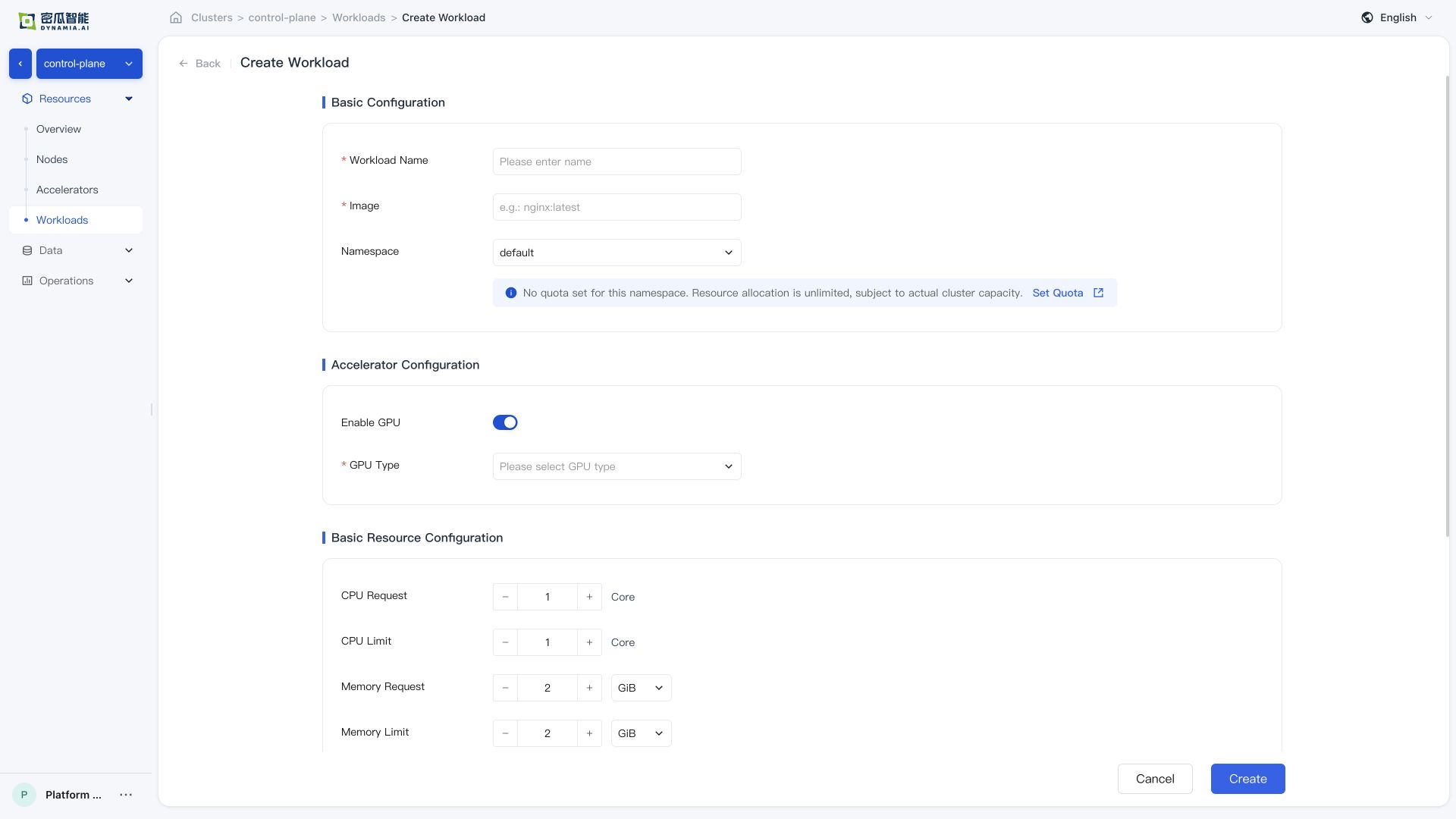
After creation, confirm that the following verification items all pass:
-
Creation successful , no errors in the console
-
Workload list : application status, search, list metrics, and monitoring panels (GPU SM / GPU MEM / CPU / Memory) are normal; time switching and charts meet expectations
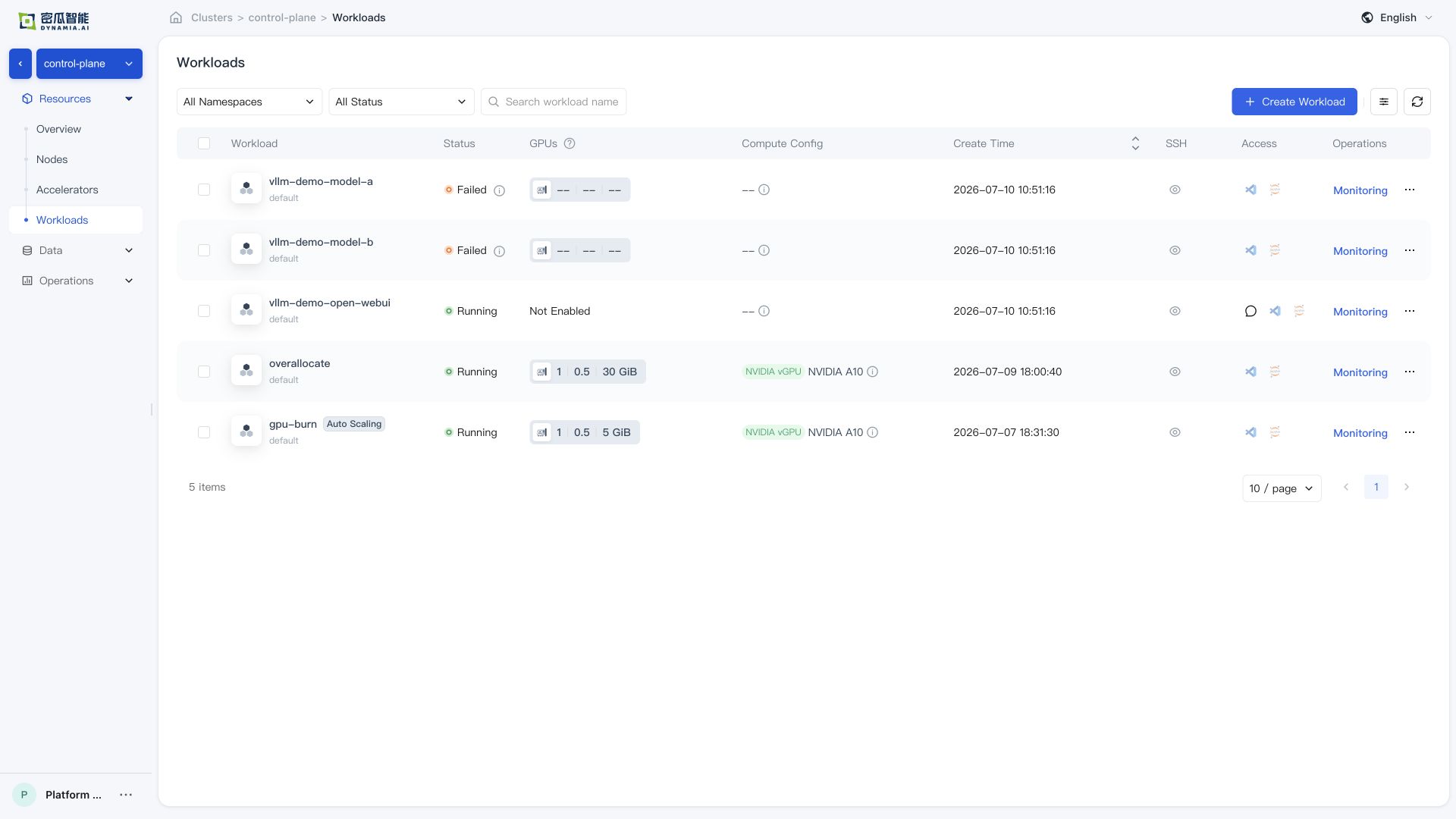
- Application details : basic information, resource overview, and monitoring data are normal; navigating from the detail page to the GPU / Node page, resource overview and monitoring data are normal
Sample Workload Verification
The outer air-gap package already contains two independent Zarf sample packages, so there is no need to manually kubectl apply local YAML.
GPU Burn Verification
zarf package deploy zarf-package-hami-example-gpu-burn-amd64-v0.0.2.tar.zst --confirm
After deployment, check the Deployment / Pod status:
kubectl -n hami-example get deploy turbo-gpu-burn
kubectl -n hami-example get pods -l app=turbo-gpu-burn
kubectl -n hami-example logs -l app=turbo-gpu-burn --tail=50
This sample creates hami-example/turbo-gpu-burn Deployment; clean it up as needed after verification:
kubectl -n hami-example delete deploy turbo-gpu-burn
vLLM + Qwen Verification
zarf package deploy zarf-package-hami-example-vllm-qwen-amd64-v0.0.4.tar.zst --confirm
After deployment, check the inference service status:
kubectl -n hami-example get deploy vllm-qwen3
kubectl -n hami-example get pods -l app=vllm-qwen3
kubectl -n hami-example get svc vllm-qwen3-webui
Once the Pod is ready, access Open WebUI via any node IP + NodePort (30081):
# Get cluster node IP (any reachable node is fine)
kubectl get nodes -o wide

# Access via browser
# http://<node-ip>:30081
Open WebUI is automatically connected to the vLLM sidecar in the same Pod; open the page to start interacting.
If the Pod remains Pending, first check whether the license is activated, whether GPU nodes are labeled with gpu=on, and whether the node GPU drivers are normal.
Troubleshooting
Common inspection commands:
kubectl get pods -A | grep -E 'hami|gpu-operator|prometheus|vllm|gpu-burn'
kubectl get events -A --sort-by=.lastTimestamp | tail -50
zarf package list
Collect diagnostic information:
bash collect-cluster-info.sh
Manually inspect the main package contents:
# Extract the main package to a temporary directory; reserve enough space
zarf tools archiver decompress hami-ai-platform-v0.0.3-airgap-amd64.tar.zst /tmp/hami-ai-platform-pkg

# View the package definition
cat /tmp/hami-ai-platform-pkg/zarf.yaml

# View rendered manifests offline
zarf package inspect manifests hami-ai-platform-v0.0.3-airgap-amd64.tar.zst \
  --components=hami-ai-platform \
  --values=my-overrides.yaml

# View rendered values offline
zarf package inspect values-files hami-ai-platform-v0.0.3-airgap-amd64.tar.zst \
  --components=hami,hami-ai-platform \
  --values=my-overrides.yaml
Common Issues
| Symptom | Possible Cause | Resolution |
|---|---|---|
| Image pull fails | The node cannot reach the image registry, registry authentication is missing or invalid, or the image reference is incorrect | Inspect the Pod events and image reference, verify node DNS and network access to the registry, and configure the required image pull credentials. |
hami-device-plugin Pod is Pending or missing | The node is not labeled gpu=on | kubectl label nodes <node> gpu=on |
hami-device-plugin Pod is in CrashLoopBackOff | It conflicts with the default NVIDIA device-plugin | Disable the GPU Operator devicePlugin (--set devicePlugin.enabled=false). |
| HAMi metrics are unavailable | The serviceMonitorSelector of the Prometheus resource does not match the labels on the ServiceMonitor resource | Align prometheus/prometheus-kube-prometheus-prometheus spec.serviceMonitorSelector with the labels configured for the HAMi ServiceMonitor. |
nvidia-smi reports an error | The GPU driver is not ready | Check the driver Pod status in the gpu-operator Namespace. |
Sample workload remains Pending | The license is not activated, GPU capacity is insufficient, or node labels are missing | Check the license, GPU node labels, and kubectl describe pod events. |
Gateway has no ingress address | Gateway API or Envoy Gateway CRDs are not ready, the Envoy Gateway release is unhealthy, or the Envoy Service type is unsuitable for the cluster | Check the Established status of all 20 related CRDs, run helm status eg -n envoy-gateway-system, and inspect the Gateway conditions and Envoy Service. Do not retry by uninstalling the CRD release or deleting CRDs. |
Limitations of Installing Components with Zarf
Control the Image Rewrite Scope Explicitly with Labels
We recommend initializing Zarf with zarf init --agent-mutation-policy=labeled. This policy rewrites only resources labeled zarf.dev/agent: mutate, or resources in a namespace with that label. An individual workload that must retain its original image reference can be labeled zarf.dev/agent: ignore, and a resource label takes precedence over the namespace label. This allows image rewriting to be controlled per resource, even within the same cluster or namespace, without having the Agent manage every application namespace by default. Only images included in the Zarf package can be rewritten and pulled in an offline environment. After changing labels, recreate existing Pods because they are not updated automatically.
Manage Each Set of Resources Through a Single Delivery Pipeline
Zarf manages the chart releases in a package through Helm. Managing the same Kubernetes resources in parallel through another native Helm workflow can still cause release ownership, field ownership, and upgrade ordering conflicts. Continue routine upgrades with a newer Zarf package. If existing resources must be transferred to Zarf, review the release and resource scope before using --take-ownership. Use --force-conflicts only for Server-Side Apply field conflicts that you have confirmed may be overwritten; it should not be used as a routine installation option.
Support
-
Email: info@dynamia.ai
-
Sales / technical support: 400-026-7800
-
Customers with active commercial agreements should submit support requests through their dedicated support channel.